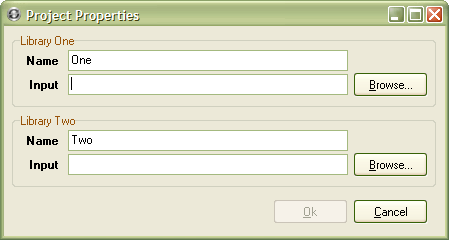
The names and input files for both iTunes libraries can be changed at any time from the project options window. For new projects, the fields are initially empty; existing projects show the current values. You can open the project option window in the following ways:
- By create a new project with File > New from the menu or by pressing
Ctrl+N - By selecting File > Properties... from the menu
You should see the window below:
You'll notice that TuneSync has disabled the Ok button; that will be the case when you create a new project. Choose input files for both libraries to enable it. You should also choose more meaningful names than "One" and "Two"; use relatively short names to avoid cluttering the user interface. Press Ok to save your changes and load the library files.
Another way to set libraries is to drag & drop iTunes Libraries onto TuneSync from the Windows Explorer. Dropping a single file onto either one of the the library views will open that file for that library. If you drop two or more files, TuneSync opens the project options window (shown above) with the first two usable files assigned as libraries one and two. Simply press Ok to accept the new libraries.
- See also:
- Creating a New Project in the Tutorial for more information.
Other Operations