- Select one or more songs, then use the Song Info Pane to choose values to synchronize.
- Select one or more songs and select Synchronize Selected... from the popup menu or toolbar.
- Select Synchronize All... to synchronize all the songs in the currently displayed list.
In either of the last two cases, TuneSync shows the following window to let you choose exactly how and which elements it will synchronize:
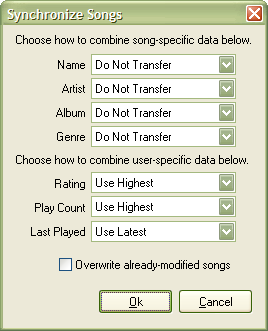
Synchronize Multiple Data
You can choose among the following options for any of the data:
- Do Not Transfer: The data is not changed in either library.
- Use One: The value from library "One" is used in all cases.
- Use Two: The value from library "Two" is used in all cases.
For each of the user data, Rating, Play Count or Last Played, you can also choose from the following options:
- Use Highest/Latest: Use the highest or latest value from either library
- Use Lowest/Oldest: Use the lowest or oldest value from either library
TuneSync replaces "One" and "Two" with the names of the libraries in your project.
Press Ok to apply changes to the list. If you don't like the results, you can always revert them or use Load Libraries to reset the window.
- See also:
- Synchronizing Songs