The song info pane shows the properties for the currently selected song in the list. It shows all of the synchronizable information that TuneSync tracks for a matched song. The original data for both libraries are on the right and left and the final versions are shown in the middle two panes.
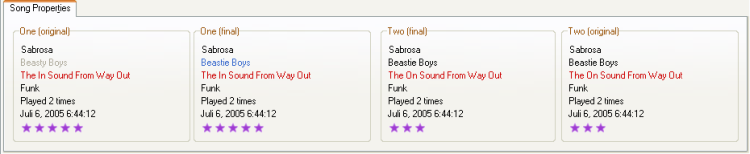
The Song Info Pane
If you can't see the pane above for a particular view, select Toggle Song Info from the popup menu or under View in the main menu. You can also double-click the status bar to toggle the pane.
As in the song list view, TuneSync uses colors to indicate which parts of a song don't match between two libraries:
- Black: No difference or difference has already been resolved
- Red: Indicates a difference in name, artist, album or genre. Though case makes no difference in matching, TuneSync shows differences in case here so you can choose one style of capitalization or another (resolving the difference between libraries). TuneSync marks all four panes in red until the difference is resolved.
- Purple: Indicates a difference in rating, play count or last time played. TuneSync marks all four panes in purple until the difference is resolved.
- Blue: Indicates a value that is different for that library. Only one of the final values will ever be marked in blue.
- Silver: Indicates a value that has been discarded for that library. Only the original value accompanying a modified value will ever be marked in silver.
- See also:
- Using the Info Pane in the Tutorial.
Making Changes from the Song Info Pane
Selecting Multiple Songs for tips on reading the song info pane when multiple songs are selected.