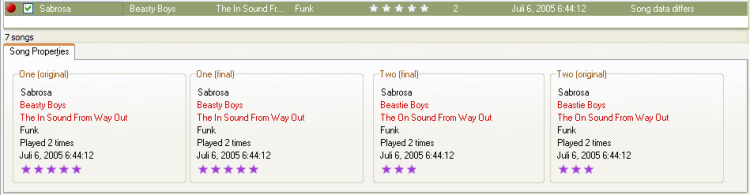
After combining 'Sabrosa'
To continue, make sure you're in the All Songs view.
Shift while selecting to select multiple songs).Ctrl+Shift+C).TuneSync has now matched these songs and made one entry. The song should be selected and look like the screenshot below:
After combining 'Sabrosa'
Ctrl+Shift+S).You should be looking at the original two "Sabrosa" songs again.