This is part four of the Tutorial.
Make sure you're on the Matches View and looking at the five songs from the previous step. Now, let's start out slowly by synchronizing a single song*:
- Select "Groove Holmes" from the list; TuneSync shows all the song properties from both libraries in the Song Info Pane.
- Hover the mouse over the various bits of text; notice how the text highlights blue and underlined when hovering over the Artist and Album**.
- Click "Beastie Boys" on the "One (final)" panel to choose that name; notice how the corresponding Artist on the "Two (final)" panel is updated and turns blue, to indicate that it was modified and how the Artist on the "One (original)" panel turns silver to indicate that it has been abandoned.
- Hover over the Artist on the "One (original)" panel and you can see that you can still choose that value if you want.
- Do the same thing for the Album, but selecting "The In Sound from Way Out" on the "One (final)" panel instead.
You have synchronized the song data for "Groove Holmes"; it should look like the screenshot below:
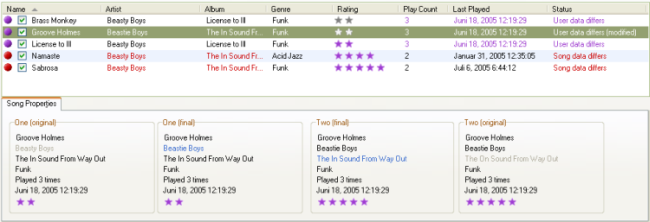
'Groove Holmes' has been synchronized
Notice that the song's status has changed from Song Data Differs to User Data Differs (modified) because, though we updated the Artist and Album, the Rating is still different.
- See also:
- Prev: Synchronizing Songs
Next: Using the Popup Menu
**The rating does not highlight when hovered, but you can still click on it to select that rating.