This is part two of the Tutorial.
The image below shows TuneSync after having loaded and matched two libraries, which use the default names, "One" and "Two".
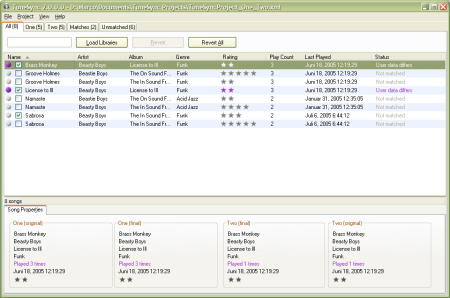
The Song List
TuneSync incorporates a lot of information into this view:
- The name of the project file is shown in the title bar
- There are five tabs of information available about the two libraries.
- All: Includes all songs from both libraries, matched and unmatched
- One/Two: Includes only the songs in each library
- Matches: Includes only the songs that have been matched from both libraries
- Unmatched: Includes only songs from both libraries that could not be matched
- On each tab, you can see how many songs appear in the list on that tab. If the view is filtered, TuneSync shows the filtered number as well as the number of songs that would have been matched had there been no filter.
- The status bar shows the filtered and total number of songs in the selected view.
- Songs are marked with different icons and colors depending on their status. See Song List for details about the data and colors shown there.
- The Song Info Pane shows all details about the currently selected song in the list.
- See also:
- Prev: Creating a New Project
Next: Matching Songs