TuneSync shows the results of a user-initiated match in a separate window. This window has the exact same views as the main window, but also has Ok and Cancel buttons to let you decide whether to accept the sub-matches or not.
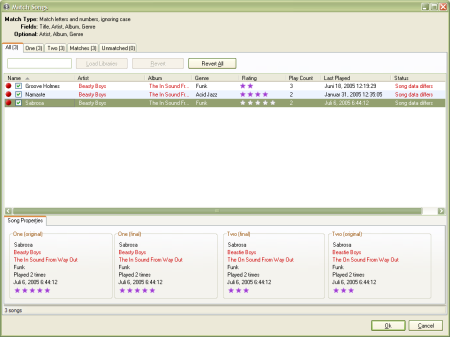
Matched Sublist
TuneSync summarizes the settings used to generate the match at the top of the window. From this window, you can perform all combining, splitting, filtering and synchronizing operations that you can from the main window. You cannot perform another match or export the libraries.
Though you can always split any mis-matches later, it's a good idea to check new matches right in this window before pressing Ok. It's especially important to check that an especially loose match didn't match completely different songs.
- In order to check this quickly, switch to the Matches view and filter by Name Differs, then check the list to verify that the matches are valid.
- For larger libraries, it's also possible to have songs with the same Name, but different Artists. To check those, filter the list by Artist Differs and verify the matches.
- See also:
- Matching Songs
Match Options Window